
This post is a continuation of the post VCF9 – Creating a workload domain, which automatically creates a Cluster when creating the Workload Domain. But what if you require more clusters?
- Maybe you want to create a dedicated cluster for your databases?
- Maybe you want to run Kubernetes over 3 different zones for high availability?
To add another cluster you will follow the same steps as before to either create, or re-use a network pool (in case it has enough ips free), and then commission your hosts.
Before you begin please make sure that you have:
- Added your user account as ADMIN role in the sddc-manager appliance.
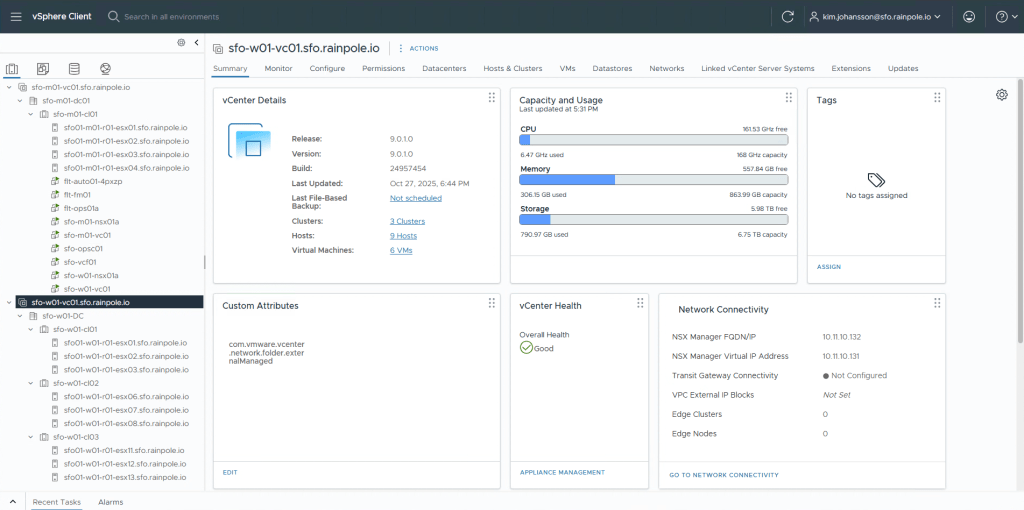
- Nice to have is enabling vCenter Linking to get the below nice view with all your vCenters in the same tree structure in one browser tab.
- Have commissioned at least 3 ESXi hosts so that they exist in the Unused Inventory.
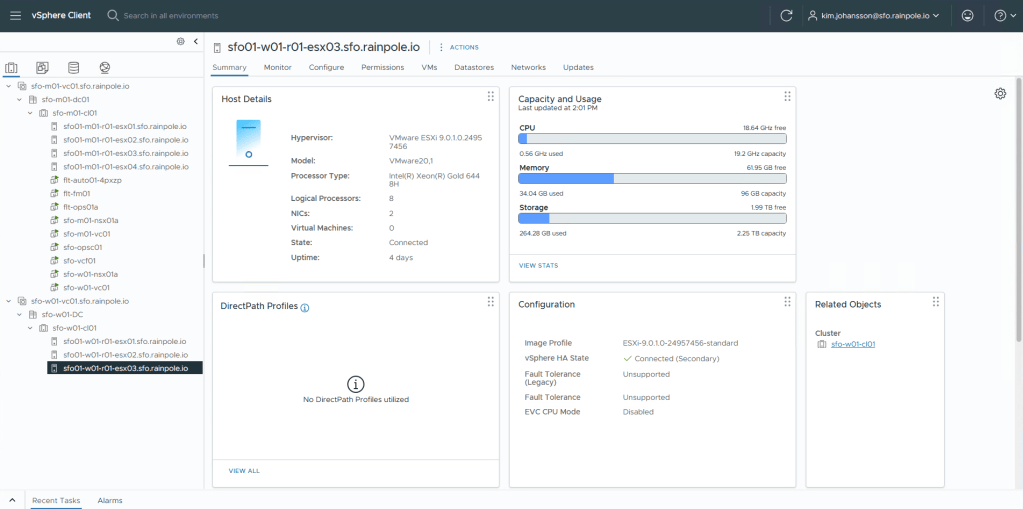
Right click the Datacenter object in the Workload Domain where you wish to create the cluster, and then navigate to New Cluster, Create SDDC Cluster..
As you can see, both the “traditional” vSphere Cluster option, and the “new” VCF SDDC Cluster options exist.
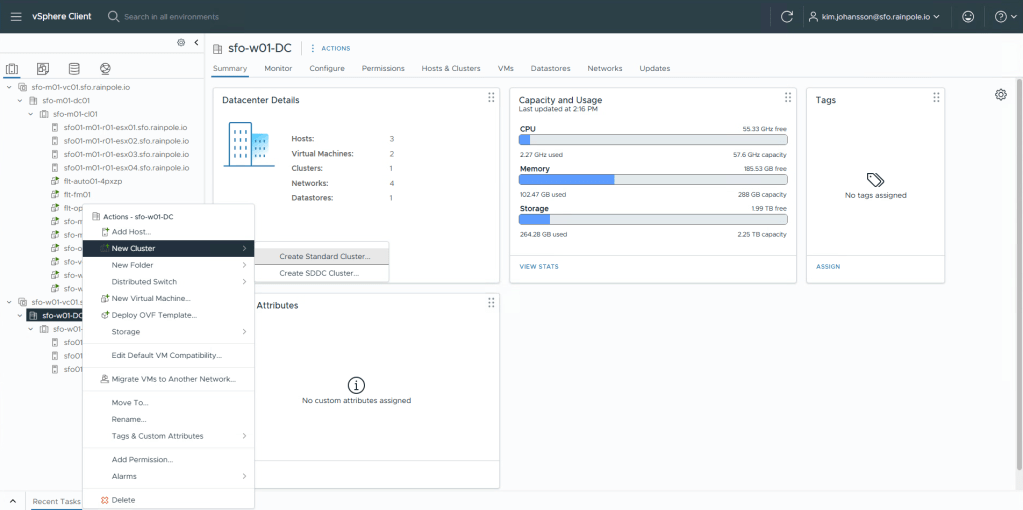
Just like when creating a Workload Domain, you choose the Principle Storage backing. This means you can have different storage backings within a workload domain for different clusters!
Click Begin
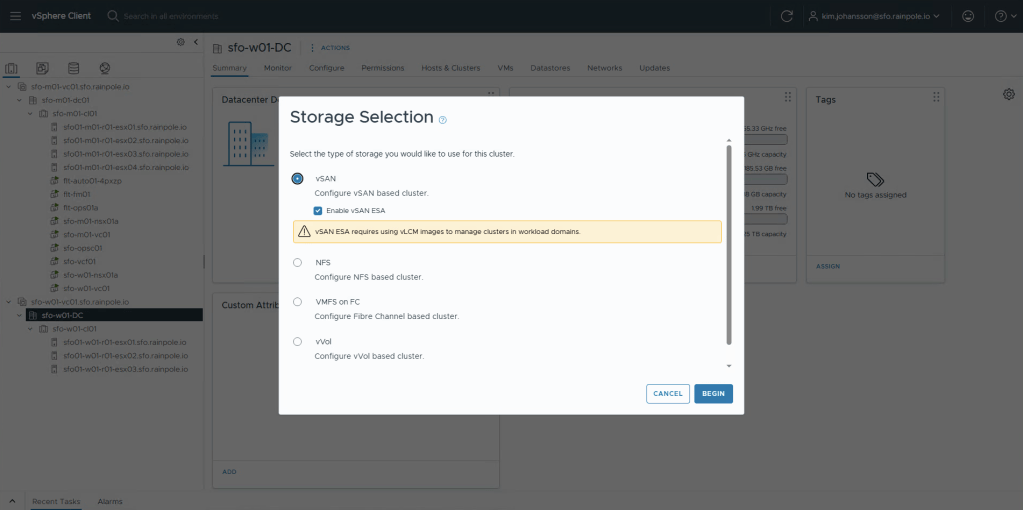
Enter the Cluster Name, Click Next.
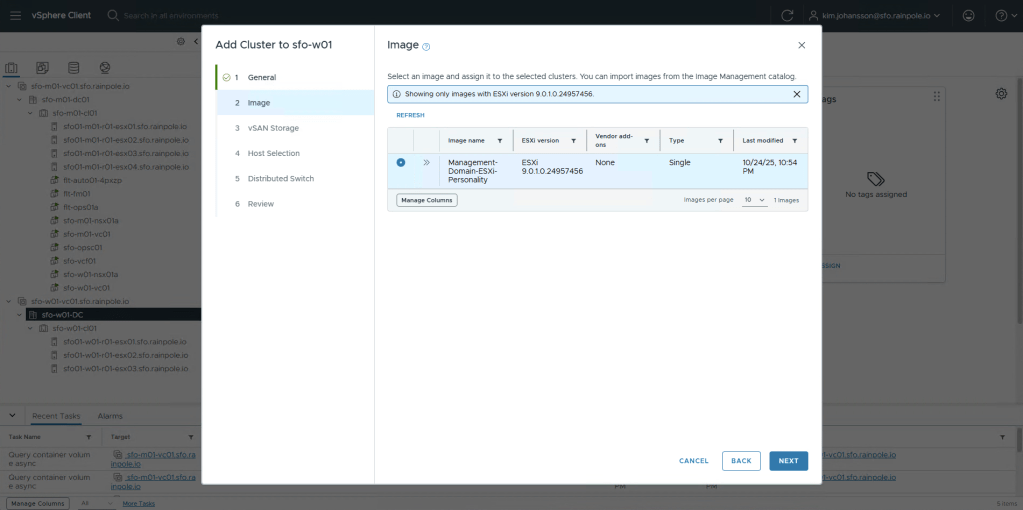
Since i’m still using Nested hosts, or if i would use the same brand/model of servers, i can just re-use the existing vLCM Image. Click Next.
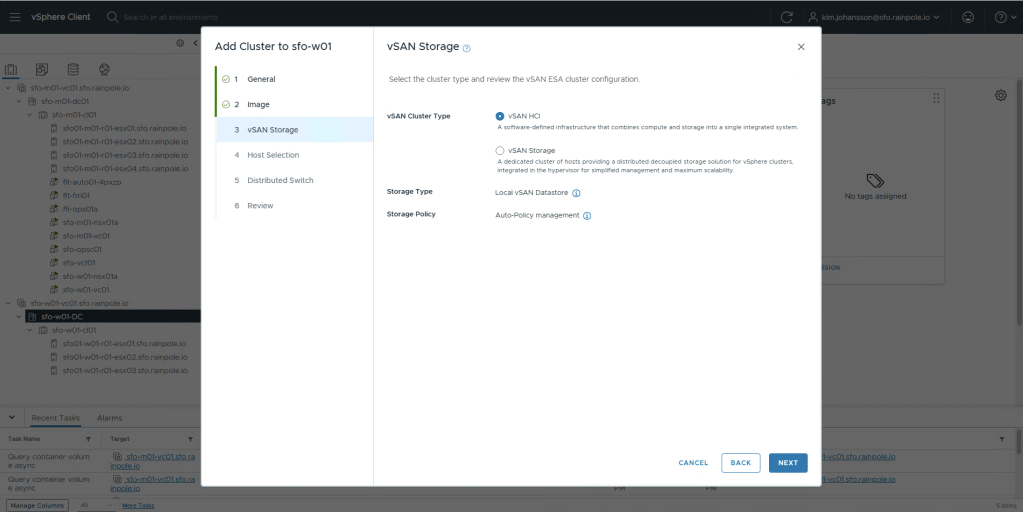
I’m going to use vSAN HCI nodes, so i’ll just click Next.
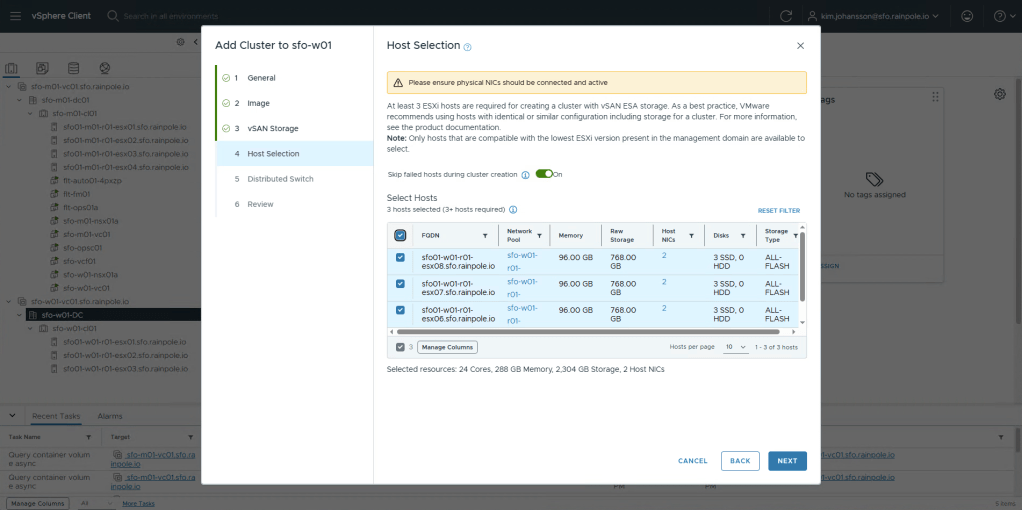
We now need to select at least 3 commissioned, but unused hosts. Select at least 3, and click Next.
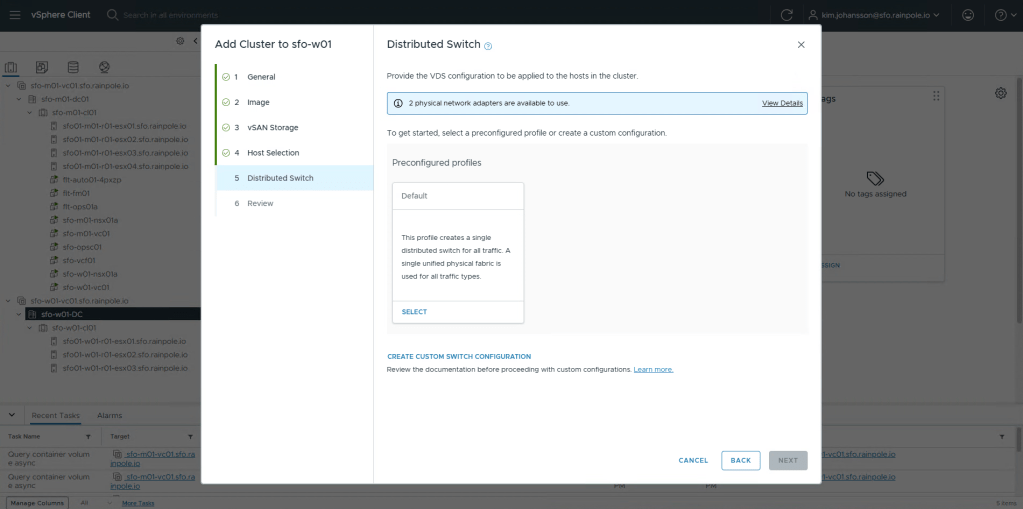
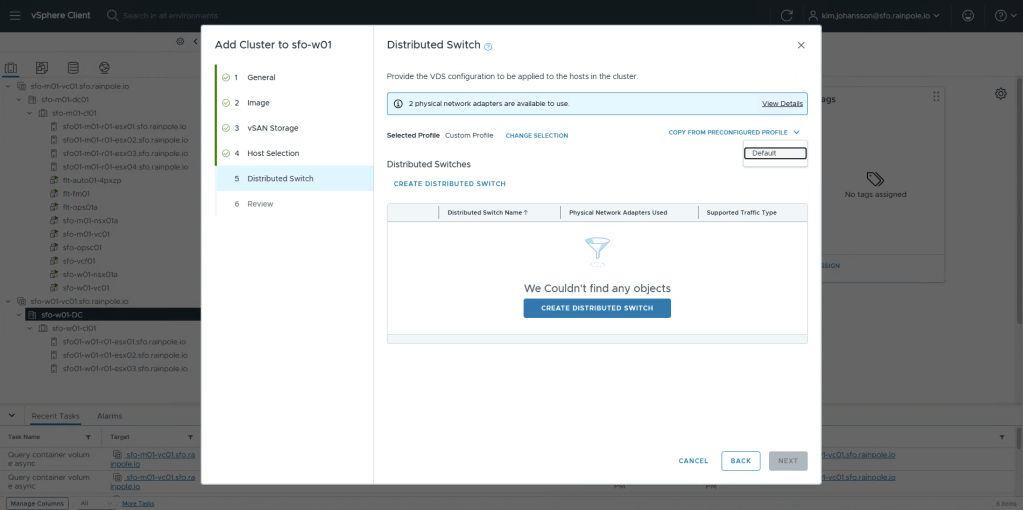
Now we need to do almost the same settings as when creating the workload domain. Since i want to use Static IPs instead of DHCP for my TEP interfaces, i’ll select Create Custom Switch Configuration.
Select teh Copy from preconfigured profile option, and select Default.
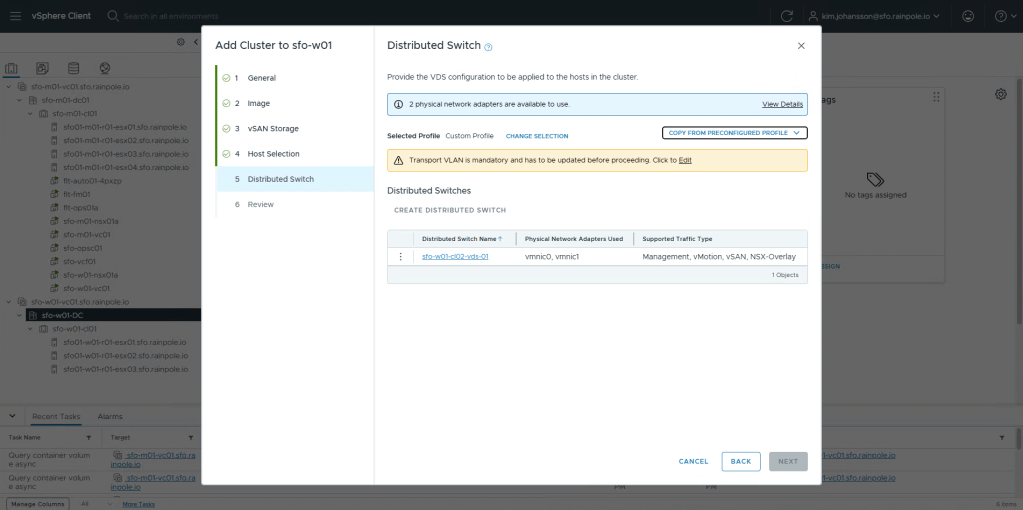
In the yellow warning, select Edit.
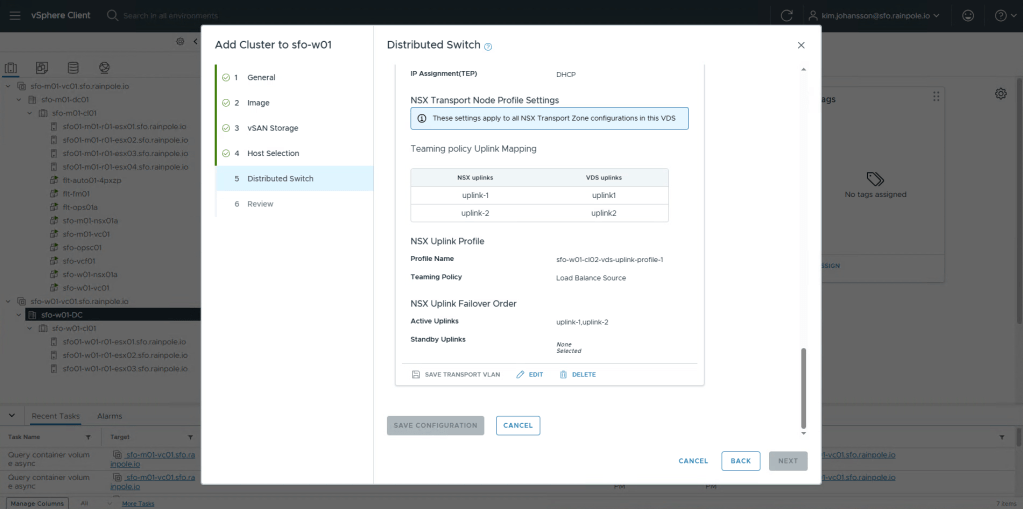
Scroll all the way down to the bottom, and click Edit.
I’ll change Operational mode again to Enhanced DataPath – Standard (EDP)
Enter the VLAN according to the Planning and Preparation document.
For IP Allocation, i’ll choose Static IP Pool, which brings up a menu to Re-Use an existing IP Pool, select this. We can now re-use the Workload domains IP pool.
Some customers will preferr to have bespoke CIDRS per Cluster, some per WLD. This is completely up to your preference, both are supported.
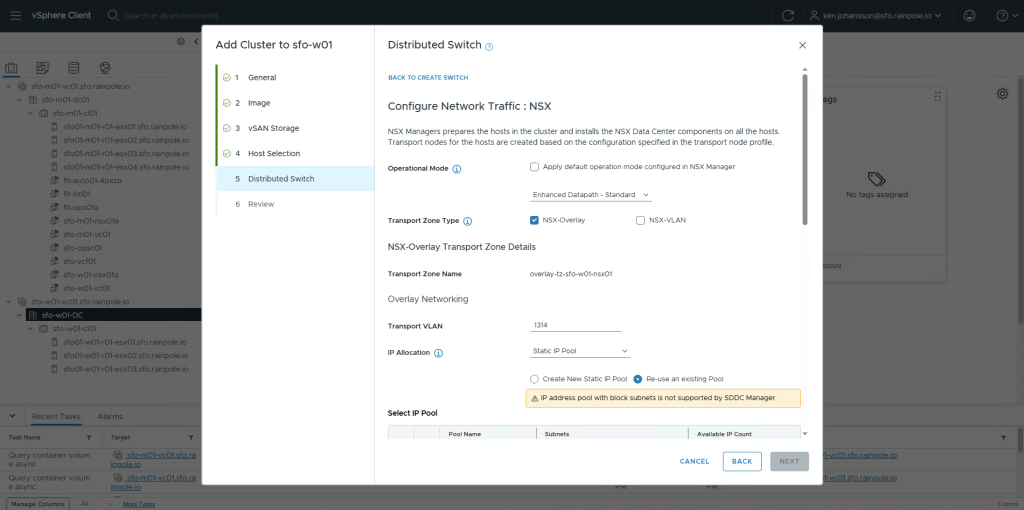
Select the existing network pool.
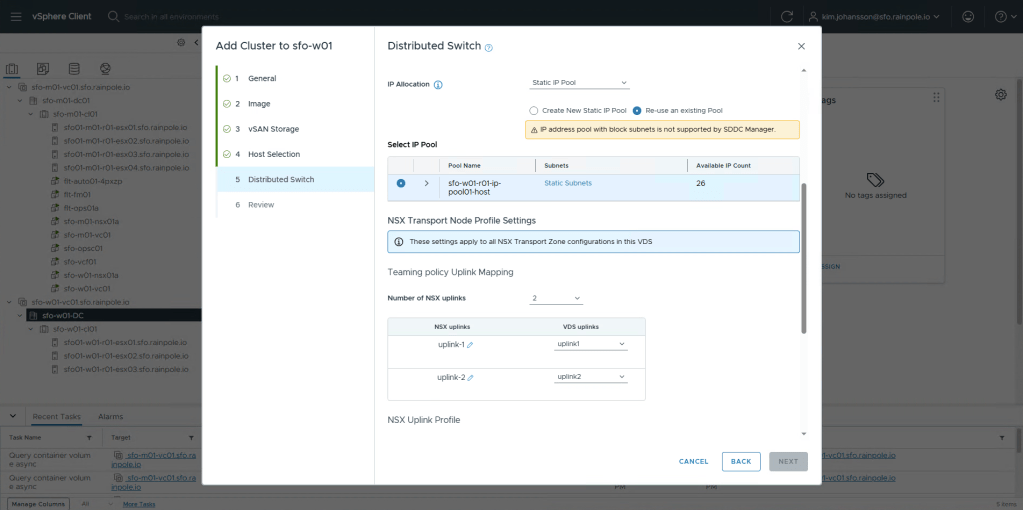
Name your profile. Click Save configuration, then Save configuration again.

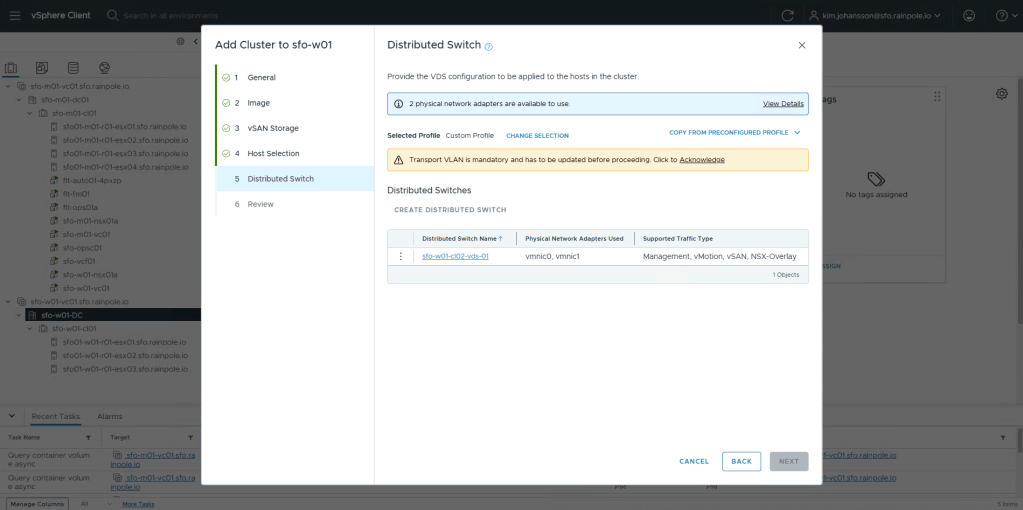
For some reason even though you’ve configured the VLAN, you need to click Acknowledge, then Next.
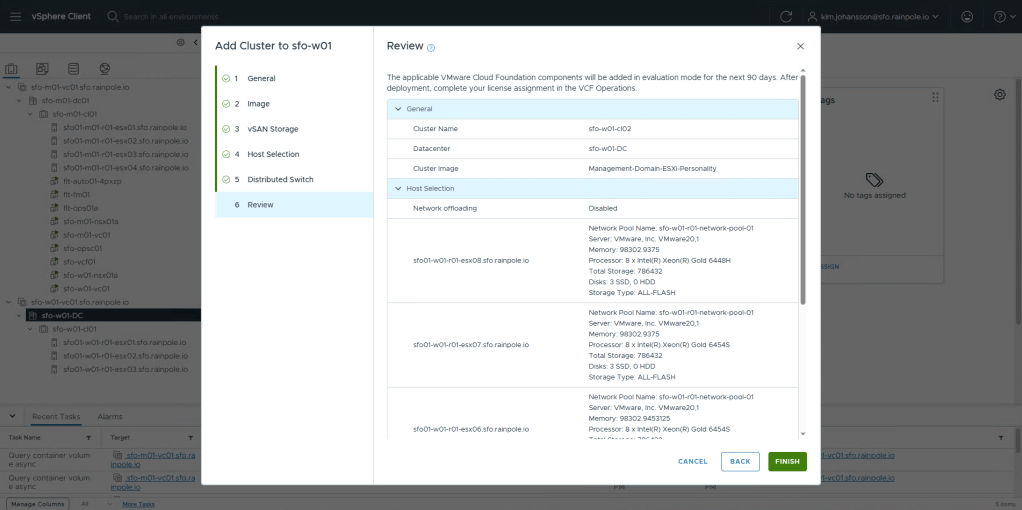
Finally, Finish.
Since this is your second cluster, there’s no need to create a vCenter, NSX Instance etc. The creation of the entire cluster, nsx configuration, vsan configuration, and all other best practices configured by VCF is actually really quick! When it’s done you should now have your second cluster.
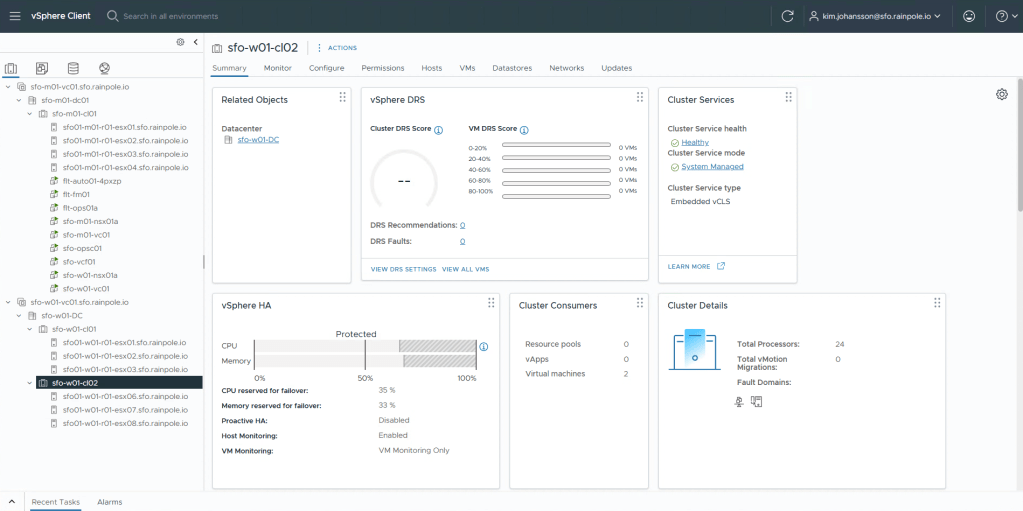
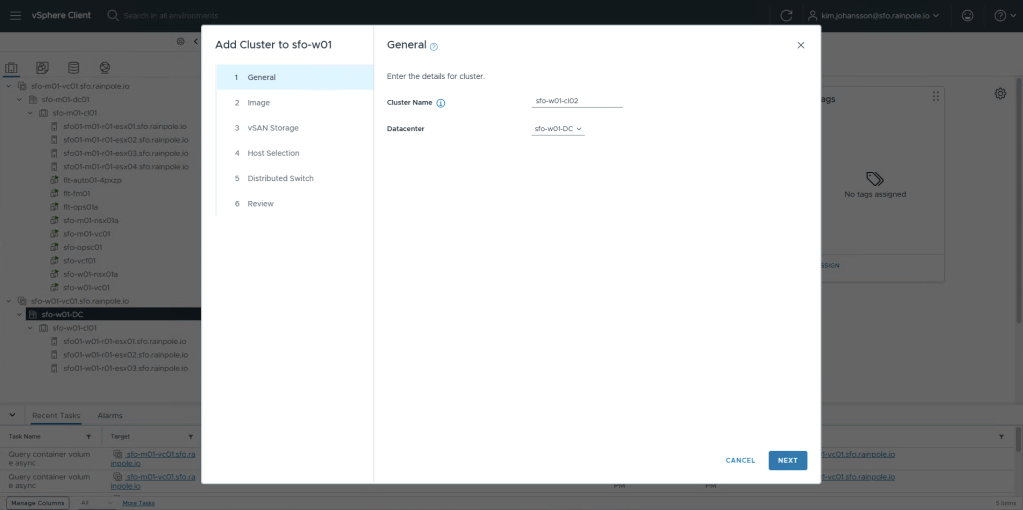
In this blog series, i’m going to show how to deploy VKS, and payloads in a very highly resiliant mode using 3 clusters, thus i’ve created 3 clusters and and my environment now looks like this.
In my next blog part i’ll be deploying a NSX Edge Cluster, and then VKS.
 Every day is a learning day