
VCF Automation will always try to find the most appropriate location to provision VMs to while taking things into consideration. If you’ve specified that the VM should be specifically deployed to a network labeled Production, then naturally all the clusters that meets all requirements except for having that Network will be filtered out as suitable candidates.
That said, this might also be why your deployment fails, because VCF Automation deemed there not to be a suitable location for this workload to be provisioned to.
So how can we easily influence, and restrict where things are provisioned to?
In this example, i’m going to simulate a project that has certain VMs that need to follow the NIST security framework, and some VMs that dont.
I’d rather not have multiple Ubuntu templates, called “nist” and “non-nist”, i want this to be done more dynamically.
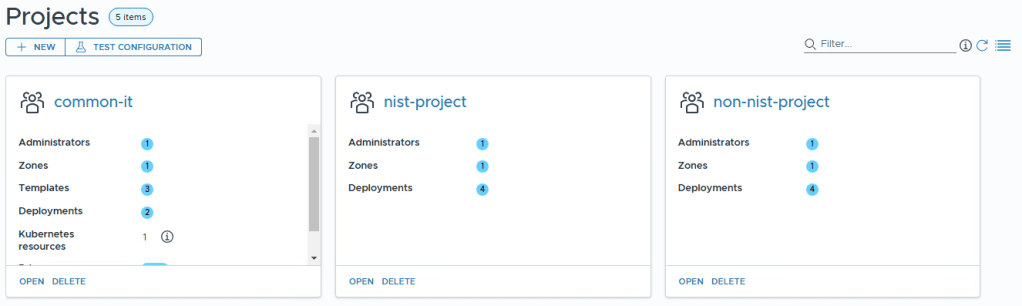
First i’ve created a few projects. The common-it project is where i have my Templates called Ubuntu and Windows Server. I’ve also created the projects nist-project, and non-nist-project, that then subscribe to common-it‘s catalogue of Templates.
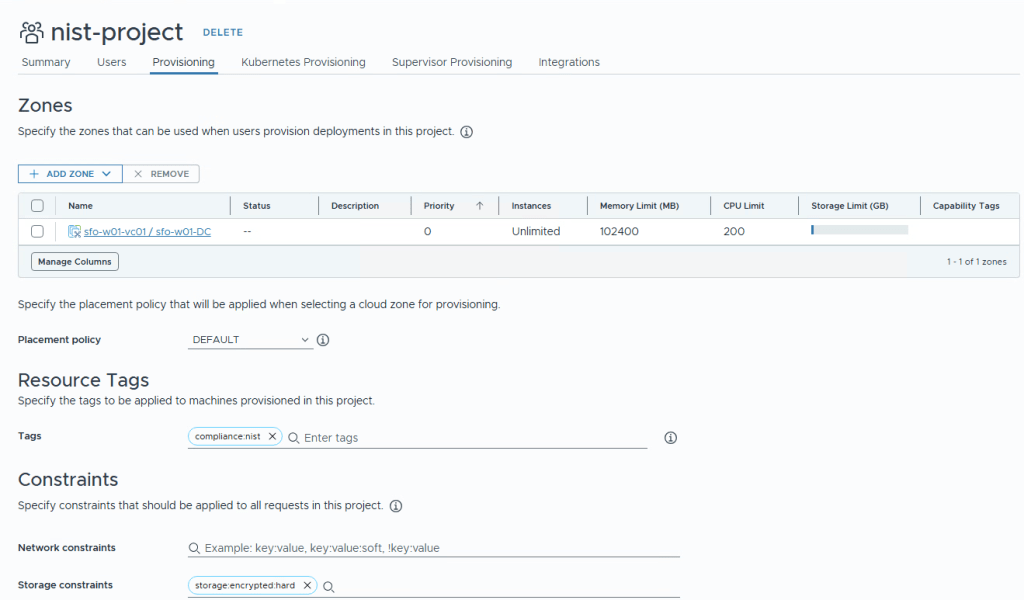
Inside the nist-project under Resource Tags i’ve created a tag called compliance:nist
this means that every resource deployed in this project will automatically get a vSphere and NSX tag called “compliance:nist”. This might be useful in the future to create either NSX Microsegmentation rules, like maybe “nist vms can only talk to other nist vms?”, or in VCF Operations “Create a dashboard showing all VMs tagged with nist”.
I’ve also added a Constraint that says storage:encrypted:hard
I’ve done this since storage encryption is a requirement of the NIST standard. This will ensure that VMs in this project will only be provisioned to storage that is tagged with being encrypted.
Okey, but how do i now ensure that i have an encrypted storage that VCF Automation can place this on? I’ll now go through these steps.
Enabling vSAN Encryption
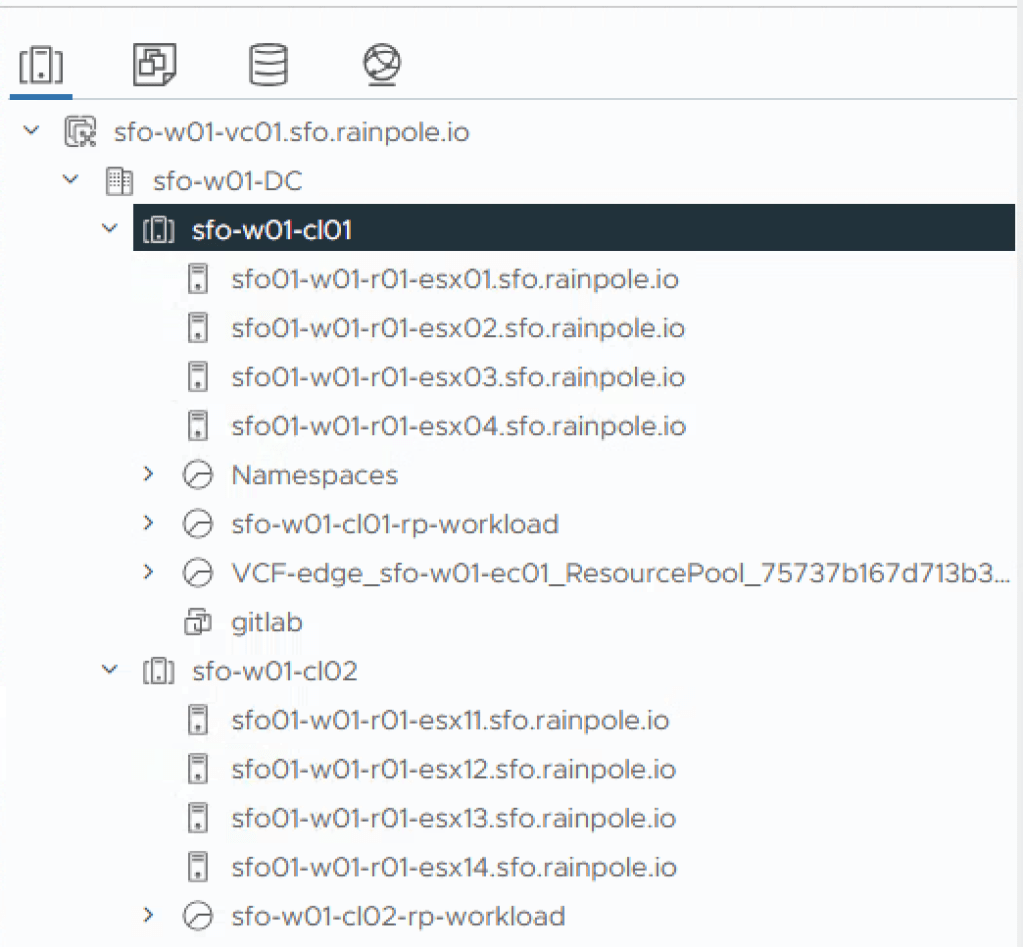
In the demo environment i’ve got two clusters. The sfo-w01-cl01 cluster with vSAN, and the sfo-w01-cl02 cluster with vSAN. None of these are currently using encryption, but we’re about to change that so the second cluster will use AES256 bit encryption.
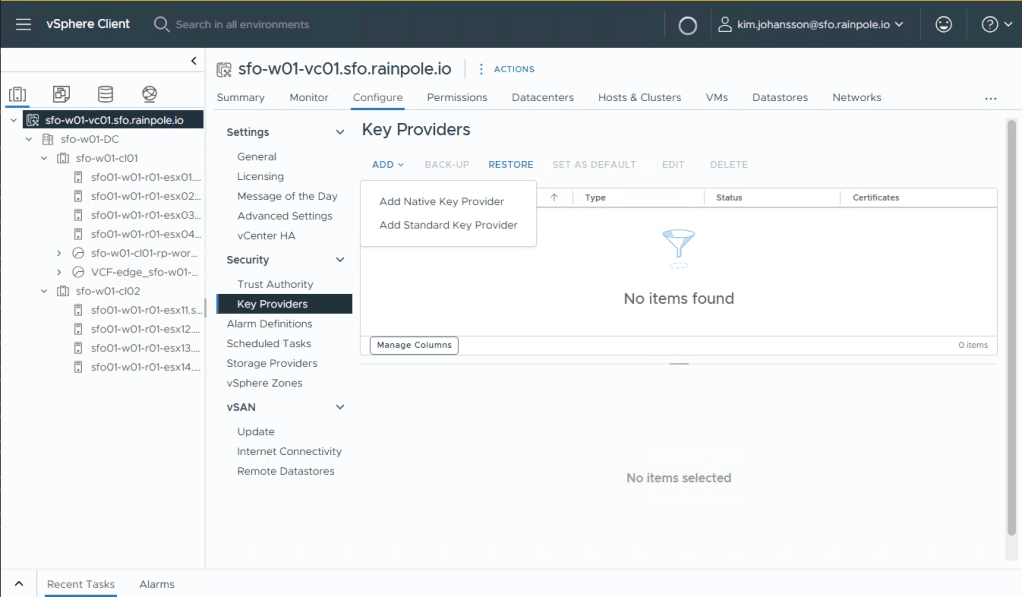
In the vSphere client, select the vCenter Object, configure and then Key Provider. VMware vCenter includes a freely available Key Provider called the NKP (Native Key Provider). This Key Provider fullfills all the requirements for both vSAN Encryption, VM Encryption, and vTPMs.
Select Add and Add Native Key Provider.
Name your keyprovider with a descriptive name, i’ve choosen to use the vCenters FQDN since it’s unique.
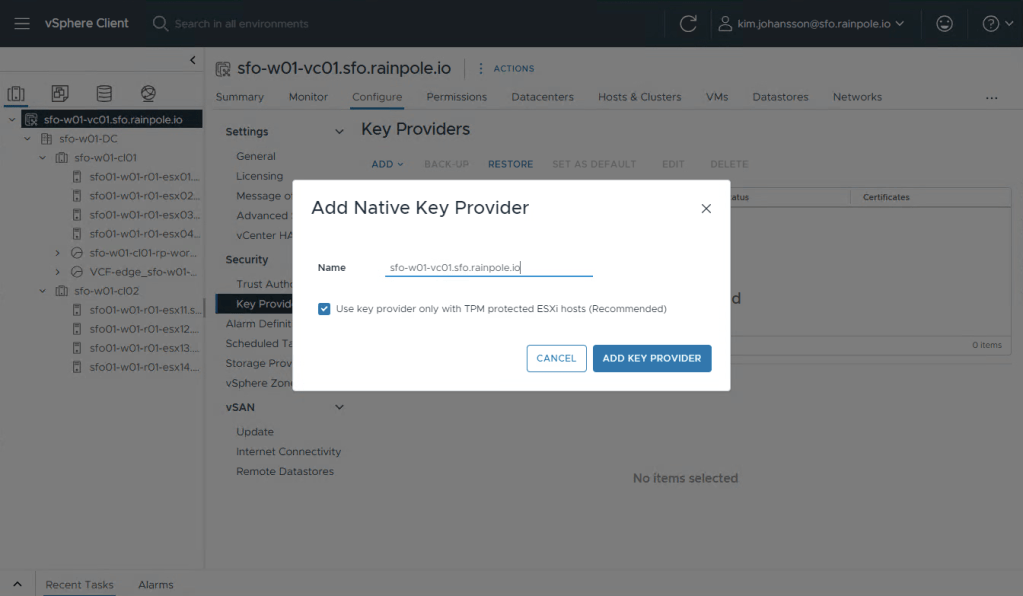
Creating it takes less than a second, to active the key provider you are now required to take a backup. Please note, as the warnings say, its very important to take backups of this key, and store it appropriately. Select Back-up.
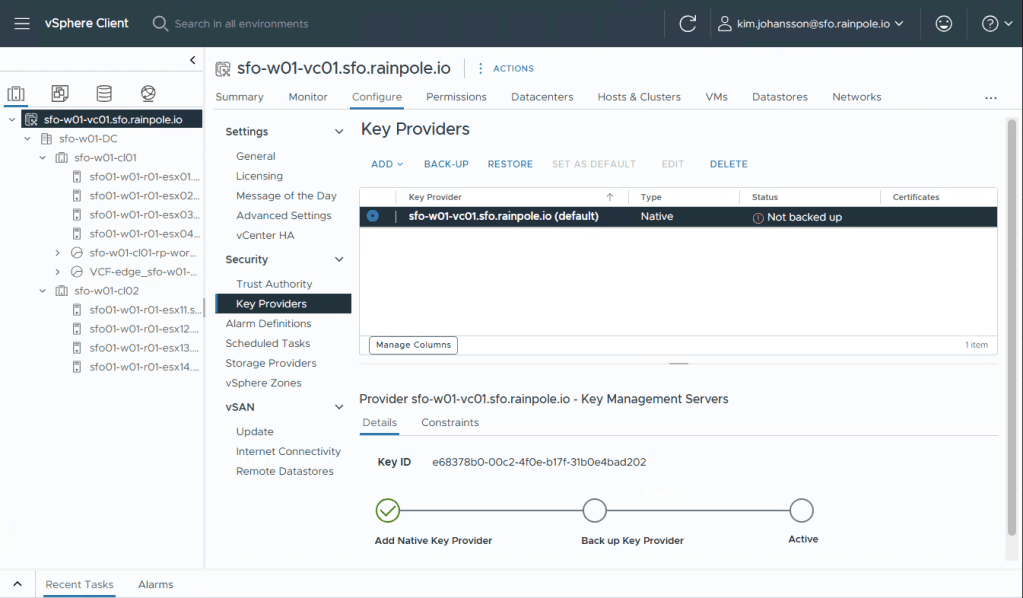
Select a strong password, and select that you’ve stored the password in a safe place.

The webpage will now send you the key as a download.

Congratulations, that wasn’t hard was it? You’ve now setup a Key Provider that can be used with vSAN. Navigate to your Cluster, select Configure, and scroll down to the vSAN part and select Services.
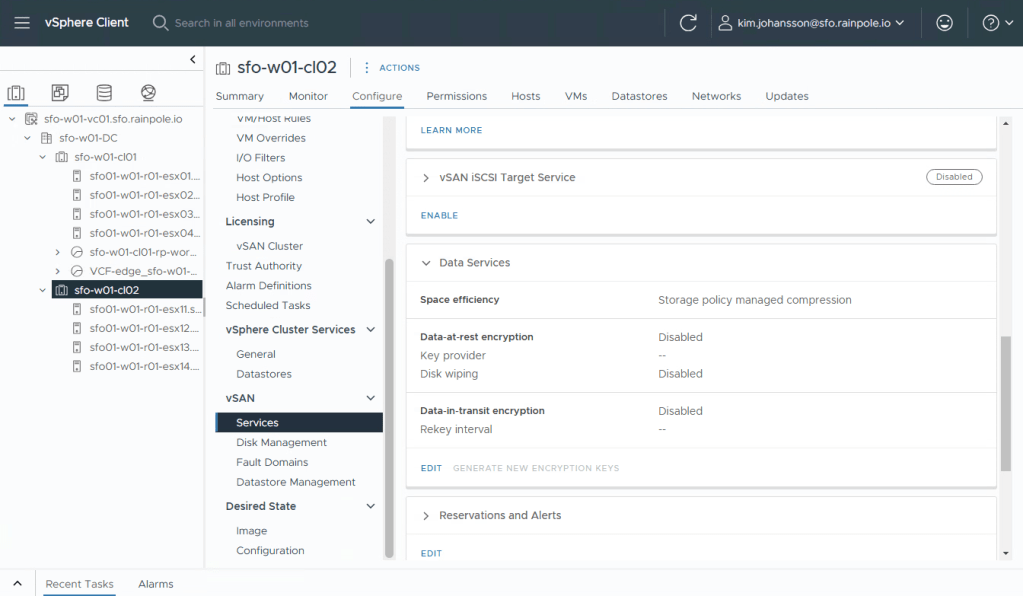
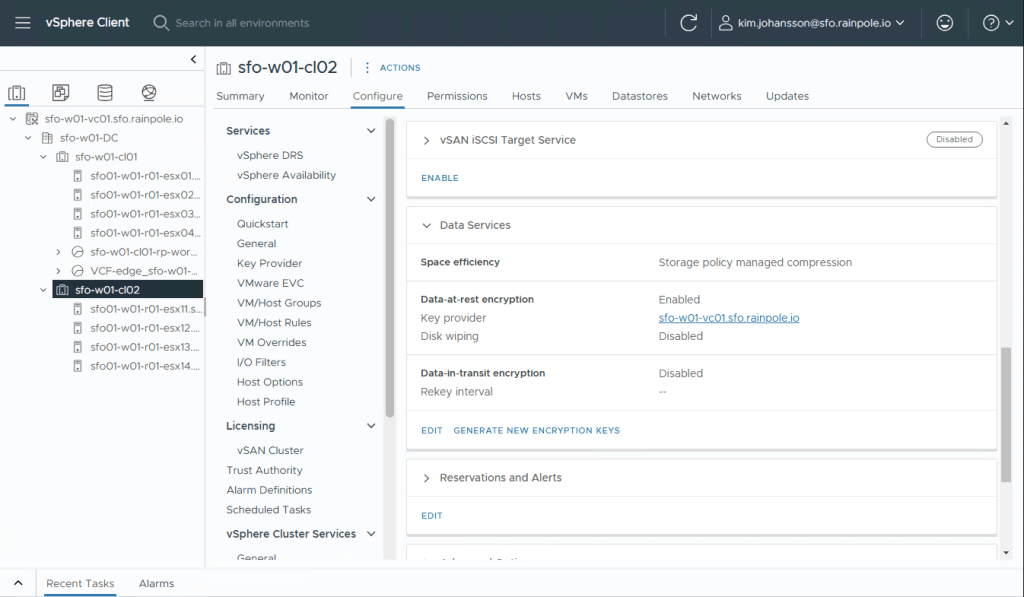
Select to encrypt Data-At-Rest Encryption, and choose your Key Provider from the dropdown list. Select Apply.
If you are running vSAN OSA, you can select Data-in-Transit Encryption to also encrypt the storage traffic that is in-flight between the cluster nodes.
vSAN ESA encrypts the data at “ingest”, so the data will already be transported encrypted. This means that you don’t have to enable this since it will just waste CPU resources.

You’ve now enabled AES-256bit encryption on this clusters vSAN, again, that wasn’t hard was it?
Configuring VCF Automation
So now we go back to the VCF Automation interface to ensure that VCF Automation is aware this cluster is encrypted.
In Assembler, navigate to Infrastructure, and Storage Profiles. Select the storage profile for your vCenter/Datacenter.
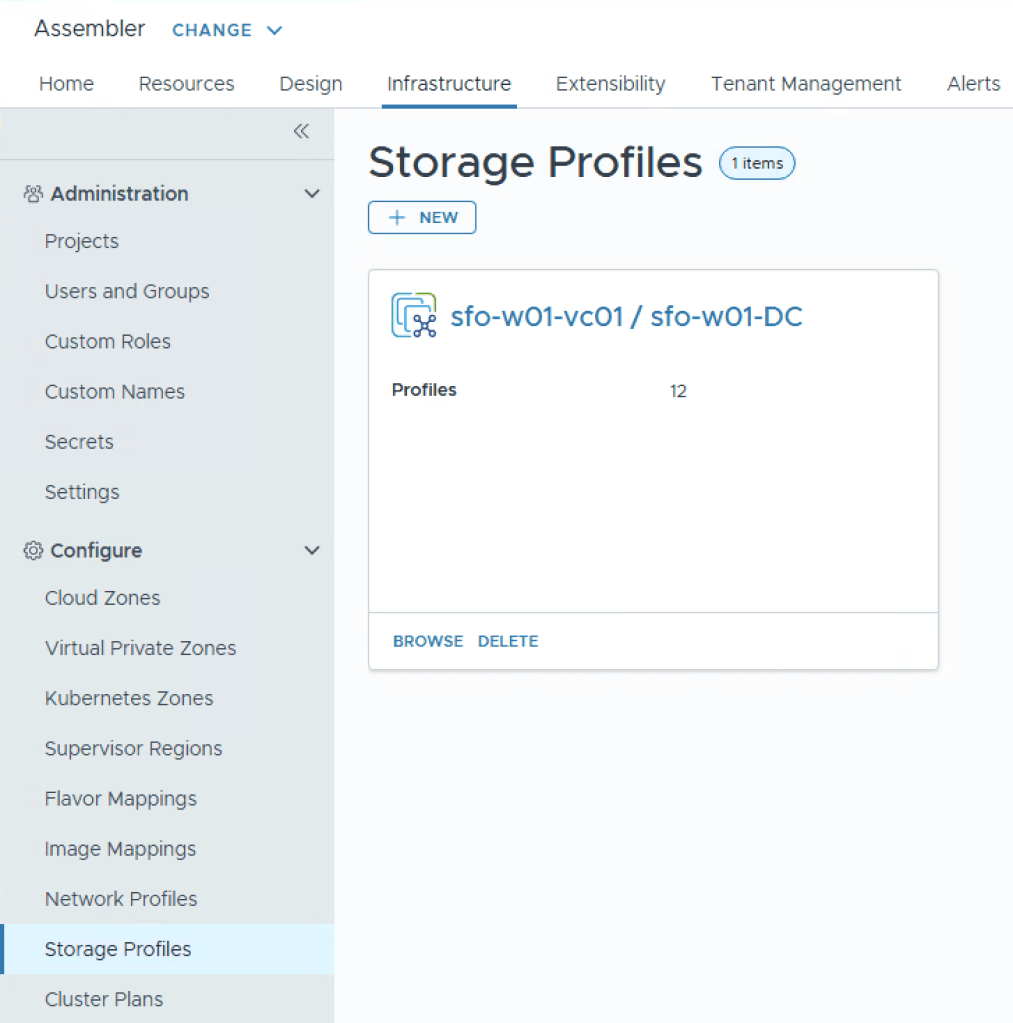
We can see the previous Storage Profile created for the first cluster, we’ll now create a second one where we define it’s encrypted. Select New.
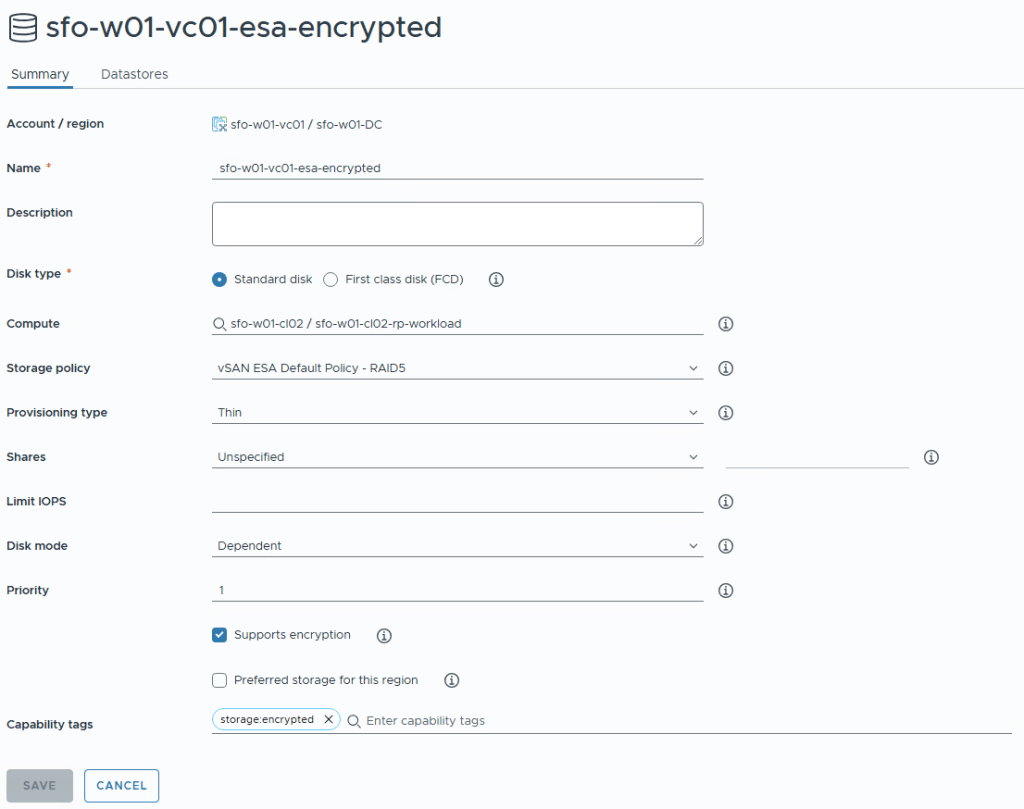
I’ve chosen to name it the same as the previous storage policy, but with -encrypted appended.
In Compute i’ve selected the Cluster (and the resource pool) for the second cluster that is now vSAN encrypted.
I’ve also given it the Capability tag storage:encrypted
If you browse to Datastores tab, you’ll see that only that vSAN is presented as a datastore, since it’s the only one datastore in that cluster. Click Save.
If this is a cluster that’s been recently added, you may also want to go to Infrastructure / Cloud Zones, and ensure that the cluster is added to the Compute menu of your Cloud Zones.
Wrapup
Since you now have a Storage Profile that has a Capability tag storage:encryption, and you have a Project that requires (constraints) the tag storage:encryption for it’s storage, VCF Automation will next time this project provisiones a resource look first determine that it can provision to Any of the two Clusters that you have defined, but then only to the cluster which has the encrypted storage, and thus provision to cl02.
This was a demo on how to set this “hard” in a project. You can also use constrains more dynamically inside a Template.
If you wanted a specific Template to be provisioned to a datastore that is encrypted, regardless of the project, you could add the following, and have the same affect.
Cloud_vSphere_Machine_1:
    type: Cloud.vSphere.Machine
    properties:
      tags:
        - key: costcenter
          value: ${input.costcenter}
        - key: dtap
          value: ${input.environment}
        - key: backup
          value: ${input.backup}
      image: ${input.osversion}
      flavor: ${input.size}
      networks:
        - network: ${resource.Network.id}
          securityGroups: []
      storage:
        constraints:
- tag: storage:encrypted  Every day is a learning day